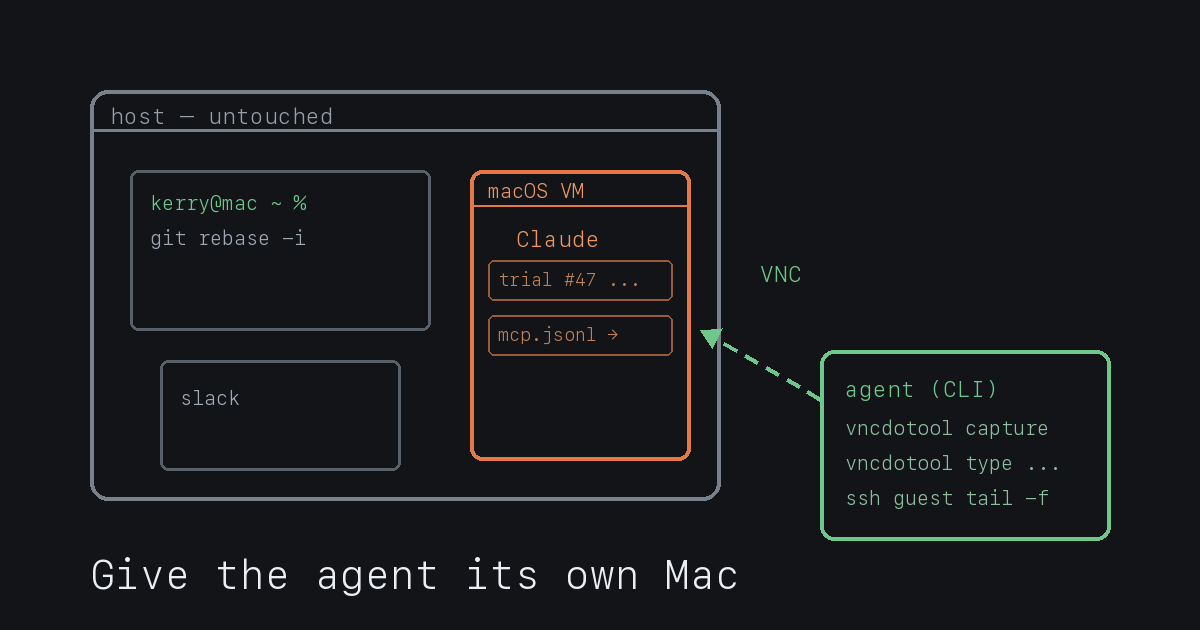
Some research questions can only be answered by driving a native GUI app. Ours was one: we needed to run hundreds of scripted trials against a desktop application and read what the software actually did on each one. There’s no API for the thing we were measuring. The app is the instrument.
The obvious way to automate a GUI is computer-use: let the agent take the mouse and keyboard and click through the app. On your own machine that is a non-starter. Computer-use seizes the pointer, the keyboard, and window focus for as long as it’s working. On a work laptop, for a run that lasts hours, that means you can’t use your computer while the experiment is running — and any stray click of yours corrupts a trial. The agent and the researcher can’t share one screen.
So we gave the agent its own. A headless macOS virtual machine, on the same Apple Silicon Mac, booted with no display attached and driven entirely over VNC. The host desktop stays yours. Claude Code, running on the host, controls the VM the way it would control a remote server: ssh for setup and ground truth, VNC for the pixels. This post is the setup, and the parts that bit us.
The stack
- tart (Cirrus Labs) for macOS virtualization on Apple Silicon. It runs macOS guests on Apple’s own Virtualization framework, so a guest boots in seconds and runs at native speed.
ghcr.io/cirruslabs/macos-sequoia-base— a prebuilt macOS Sequoia guest image, ~25 GB compressed, with a defaultadmin/adminaccount and SSH plus Screen Sharing already enabled.- sshpass for scripted, non-interactive ssh into the guest.
- vncdotool (Python) to take screenshots and send clicks and keystrokes to the guest from the host — one process per action, no long-lived session to babysit.
Install the host tools with Homebrew. The tap needs to be trusted first, or the install stops on an untrusted-tap guard:
brew trust cirruslabs/cli
brew install cirruslabs/cli/tart sshpass
Pulling the image without losing a night to it
The base image is the first thing that bites you. It’s ~25 GB compressed, and tart clone pulls it in one shot:
tart clone ghcr.io/cirruslabs/macos-sequoia-base:latest agent-vmTwo things went wrong the first time. The pull dropped partway on a flaky connection, and separately the host went to sleep overnight and killed ~15 GB of progress. Both are avoidable. tart caches already-pulled layers between attempts, so a retry resumes rather than starting over — which means the fix is just to keep retrying, and to keep the host awake while it does:
caffeinate -i bash -c '
  until TART_PULL_CONCURRENCY=1 tart clone \
      ghcr.io/cirruslabs/macos-sequoia-base:latest agent-vm; do
    echo "pull failed, retrying in 30s"; sleep 30
  done'
caffeinate -i keeps the machine from idle-sleeping for the life of the command. TART_PULL_CONCURRENCY=1 pulls one layer at a time, which is slower but far more likely to finish on a weak link than the default parallel pull. The until loop just resumes from cache after each drop until the whole thing lands.
Booting headless
Boot the guest with no display, in the background, and ask tart for its IP:
nohup tart run agent-vm --no-graphics > vm-run.log 2>&1 &
tart ip agent-vm
--no-graphics is the whole point: the VM runs with no window on the host. tart ip returned the guest address within a few seconds of boot (for us, 192.168.64.3). From here on, the guest is reachable over the network like any other host.
ssh in with the default credentials. The base image’s account is admin / admin:
sshpass -p admin ssh -o StrictHostKeyChecking=no \
  -o UserKnownHostsFile=/dev/null admin@192.168.64.3
Keep the guest awake, or your VNC goes dark
A fresh macOS guest will lock its screen and sleep its display on the same schedule a laptop would. When that happens your VNC session shows a lock screen or goes black, and every trial after that point is driving a screensaver. Turn all of it off inside the guest, over ssh:
sudo sysadminctl -screenLock off -password admin
sudo pmset -a displaysleep 0 sleep 0
defaults -currentHost write com.apple.screensaver idleTime 0
Screen lock off, display and system sleep off, screensaver idle timer off. After this the guest desktop stays lit and interactive for the length of a run.
The VNC auth gotcha
This is the step that cost the most time, so it’s worth stating precisely. vncdotool, talking to macOS’s built-in VNC server, negotiates Apple’s Diffie-Hellman authentication (VNC security type 30). Out of the box that negotiation is rejected — you get Authentication or authorization failure — even with a VNC password set. Two separate things have to be true before it works, and each is a different invocation of Apple’s kickstart tool.
First, enable legacy VNC and set a VNC password:
sudo /System/Library/CoreServices/RemoteManagement/ARDAgent.app/Contents/Resources/kickstart \
  -activate -configure -clientopts -setvnclegacy -vnclegacy yes \
  -setvncpw -vncpw admin -restart -agent
That alone was not enough. The admin user also needs Remote Management privileges granted, or the DH auth still refuses the login:
sudo /System/Library/CoreServices/RemoteManagement/ARDAgent.app/Contents/Resources/kickstart \
  -configure -allowAccessFor -allUsers -privs -all -restart -agent
After the second command, DH auth accepts admin / admin and vncdotool connects. The failure mode before that second command looks like a wrong password — it isn’t; it’s a missing privilege.
A working capture from the host looks like this:
vncdotool -s 192.168.64.3::5900 -u admin -p admin pause 1 capture desktop.pngBoth -u and -p are required. The pause 1 before capture matters: it gives the first framebuffer update time to arrive, so you capture the actual desktop instead of an empty frame.
When a human has to step in
Some steps in a run must be done by a person, not the agent — signing into an account inside the VM is the clear one. The agent must never handle a user’s credentials, so account login is a human-in-the-loop moment: the person opens the VM’s screen, signs in themselves, and hands control back.
macOS Screen Sharing is the right tool for those moments. From the host:
open vnc://admin@192.168.64.3One snag worth knowing: Apple’s Screen Sharing client may open in High Performance mode and show a black or “Locked” screen for a tart guest. Switching that connection to Standard mode (in the client’s connection settings) fixed it every time. Same VM, same session — just the client’s rendering path.
Installing and configuring the app
Everything the guest needs, install over ssh so it never touches the host. Download the app’s disk image inside the guest, mount it, copy the app into /Applications, unmount:
curl -L -o app.dmg 'https://example.com/path/to/App.dmg'
hdiutil attach app.dmg
cp -R "/Volumes/App/App.app" /Applications/
hdiutil detach "/Volumes/App"
One detail that saved trouble: write the app’s config files into the guest before the first launch, not after. For our runs the app read an MCP server config on startup, so we placed that JSON in the guest’s Application Support directory over ssh, then launched the app for the first time already wired up:
ssh admin@192.168.64.3 'open -a App'open -a launches the app inside the VM only. Nothing appears on the host.
Driving trials, and where to get ground truth
With the rig up, a trial is a short sequence of vncdotool one-liners — move, click, type, key, capture — and a screenshot read back to confirm state:
vncdotool -s 192.168.64.3::5900 -u admin -p admin \
  move 900 980 click 1 type "hello" key enter pause 2 capture after.png
The one thing we’d underline: don’t read ground truth from pixels when you can read it from a log. Screenshots tell you what the screen shows; they’re the wrong source for what the software actually did. For our measurement, the reliable record was a structured log the app’s MCP server wrote inside the guest — we pulled that over ssh and scored against it, and used screenshots only to confirm the UI was in the state we expected. Pixels for “is it on the right screen,” logs for “what actually happened.”
What we were measuring
We built this rig to study how AI agents on end-user Claude surfaces respond to operating instructions delivered through their connected MCP servers. Each trial ran a scripted chat in the desktop app; the ground truth for what the agent actually did came from the MCP server’s own JSON-RPC log, not from the screen. This post is about the infrastructure, so that’s as far into the experiment as it goes — the point here is the rig, which generalizes to any research program that has to drive a native GUI app at volume.
The shape of it
The whole thing is one idea: a native app the agent has to drive is a remote host you happen to be running on your own Mac. Boot it headless so it never owns your screen, drive it over VNC, do setup and read results over ssh, and reserve Screen Sharing for the moments a human has to be in the loop. The pieces are ordinary — tart, ssh, VNC. What made it usable was getting the boring parts right: a pull that survives a bad night, a guest that won’t fall asleep mid-run, and the two-step VNC auth dance that isn’t documented as two steps anywhere we could find. Now it is.